You are using an unsupported browser. Please update your browser to the latest version on or before July 31, 2020.
You are viewing the article in preview mode. It is not live at the moment.
Home > BOY/NTO Information for Faculty > Passwords > Changing your Password (Windows Devices)
Changing your Password (Windows Devices)
print icon

If you are on a Windows device and connected to the Boaz WiFi network, you can follow these directions to change your passwords.

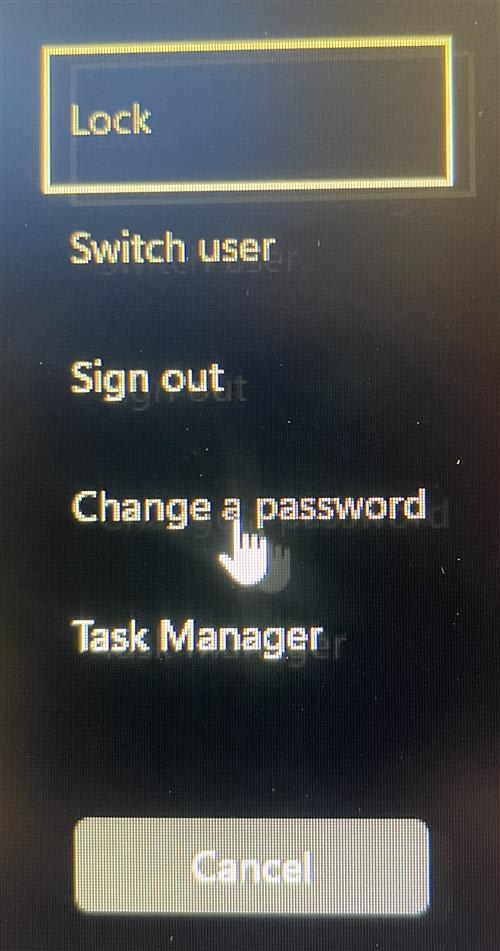
  1. While logged on to the device, press Ctrl + Alt + Del.
  2. Choose "Change a password"
    Ctrl + Alt + Del menu
  3. Enter your old password and new password twice and press enter or the Submit arrow.
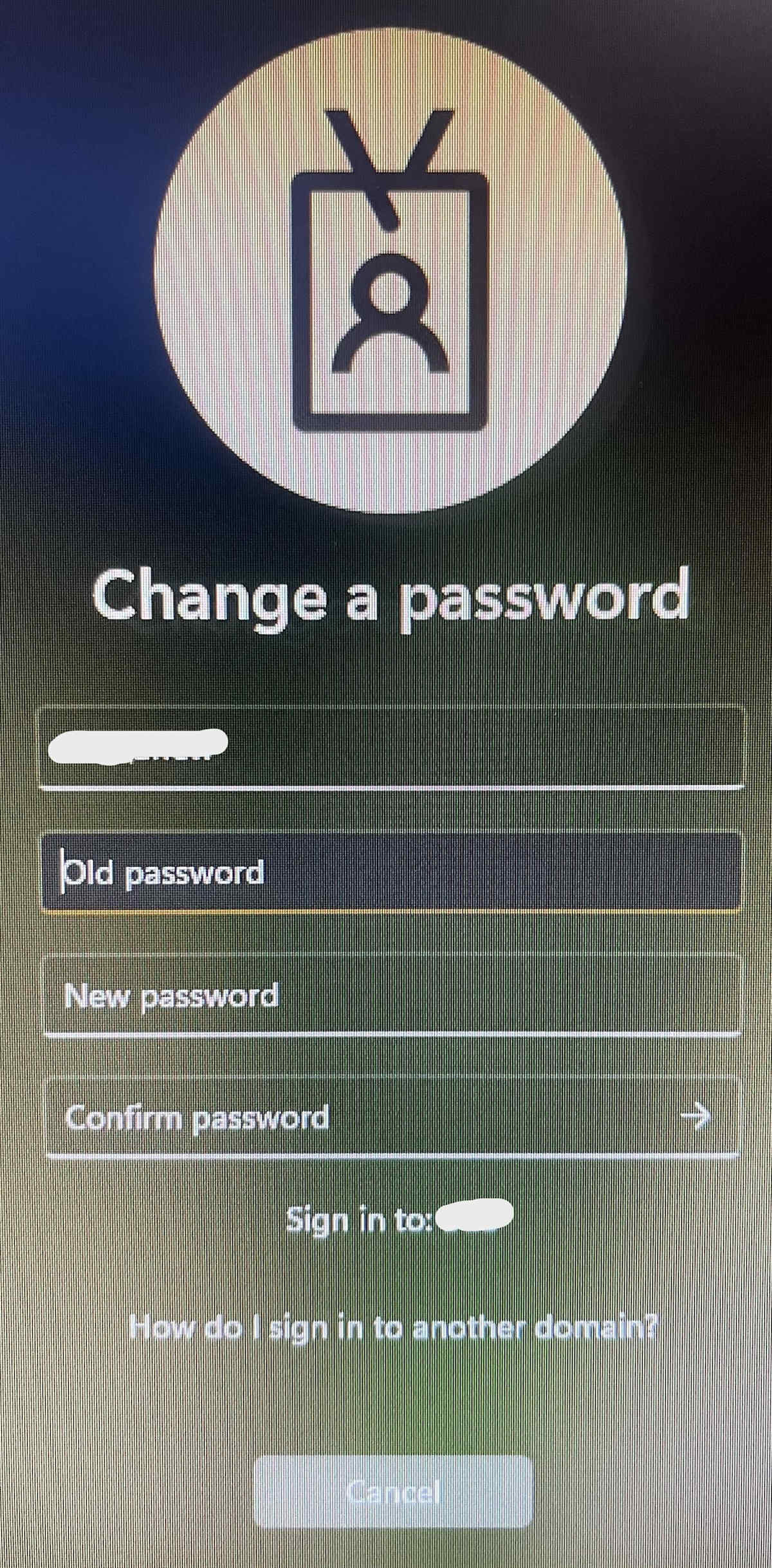
    Change Password Screen
Feedback
0 out of 0 found this helpful

scroll to top icon